
Contents
- Start Here
- Soundcloud
- MIDI
- Common DAW Issues
- 1. How do I export or bounce audio from my DAW?
- 2. Why is there no sound on my speakers or headphones?
- 3. How do I set up and troubleshoot an audio interface?
- 4. My microphone isn’t working. What should I check?
- 5. Why isn’t my DAW recording any audio?
- 6. In Logic, GarageBand, or Ableton, why is my mic recording but not my instrument?
- 7. What causes latency or delay during recording or playback?
- 8. My MIDI controller is not working or recognized. What should I do?
- Common Hardware Issues
Start Here
How to store headphones with coiled cables?
Soundcloud
Upload your audio to Soundcloud
- Sign –in to your account
- On the top menu bar of you’re account go to the option “upload”
- Drag and drop your file or click the botton “or choose files to upload” to find your track on the computer.
- Select the privacy of your file “public”
- Add the title of the assignment and your name (i.e “Assignment 1, John Doe”).
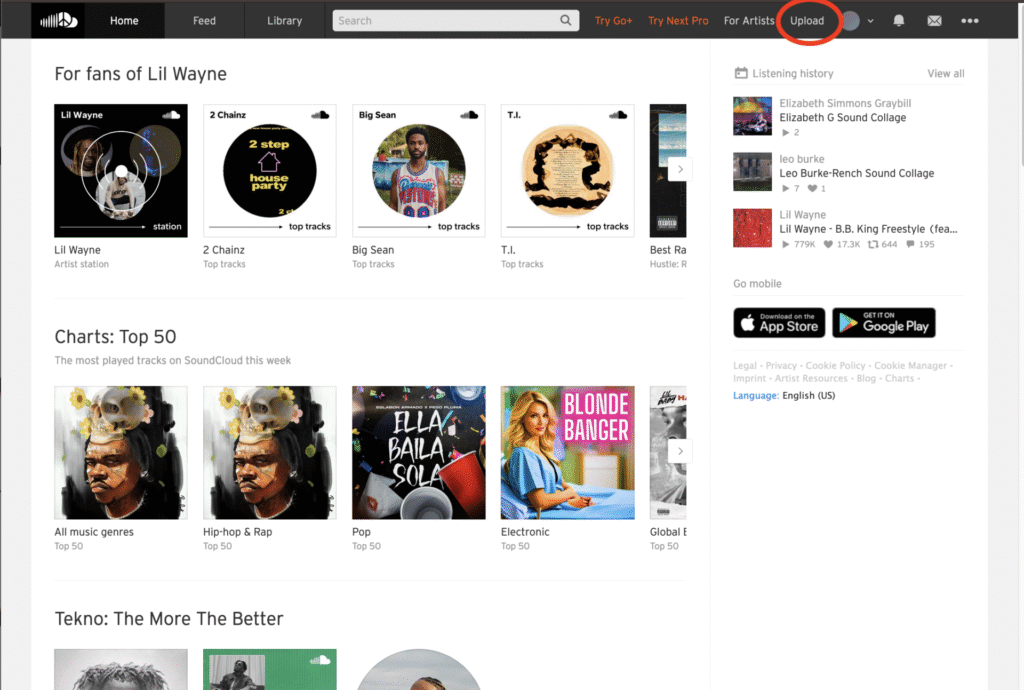
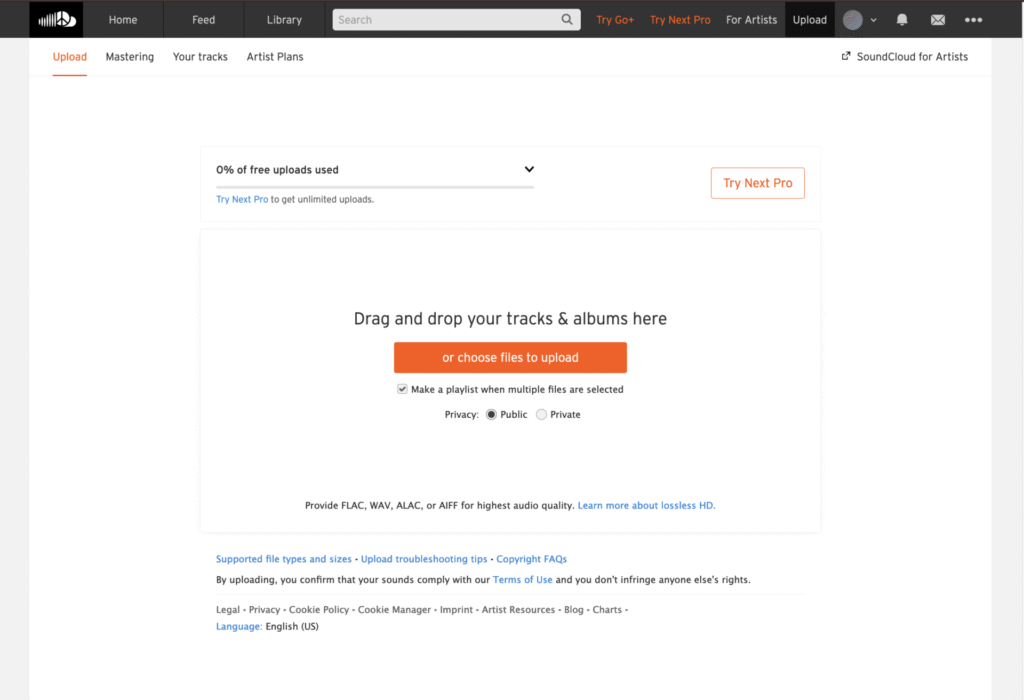
Find the link of your audio on Soundcloud
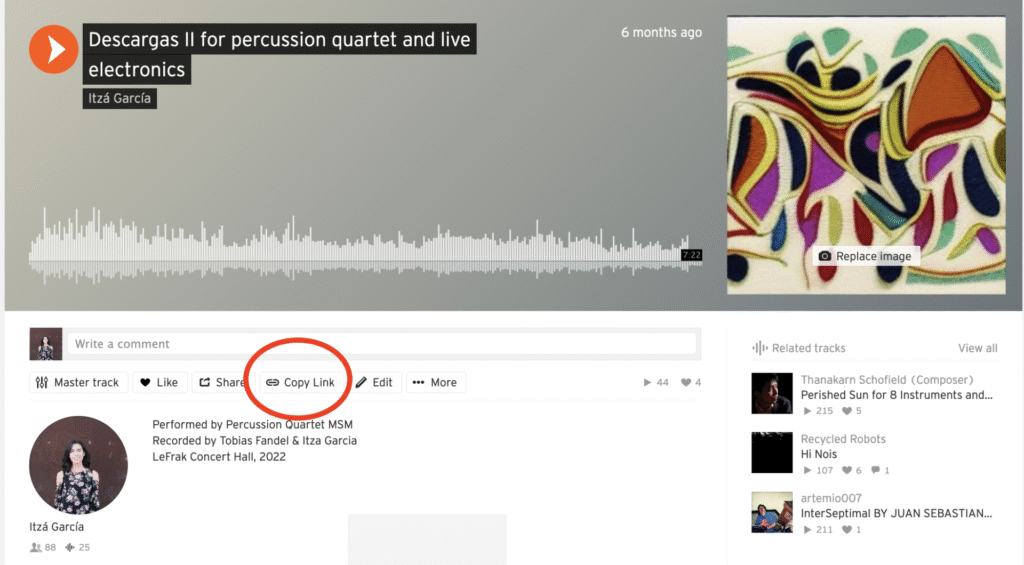
Select the track you want to share.Select the button “copy link” under your track (see image attached)You can now paste the link onto your assignment in Brightspace.
MIDI
Using your phone as a MIDI keyboard controller
Find a free midi controller app (for examples MIDIKeys on iOS and MIDI Keyboard on Android). You are not required to purchase any apps for this class. The above-mentioned apps were free to download at the moment of writing this instructions.
2.Install the App
3. Connect your phone to a usb port in your computer.
4. On audio preferences (Audio/MIDI setup on MAC, Sounds and Audio Devices on Windows) make sure your phone is enabled as an audio device,
5. On MIDI setup, make sure your phone is available as a midi device.
6. Open your MIDI controller app.
7. Open Ableton Live or your DAW
8. Enable incoming MIDI messages from the audio device of your phone.
9. Press any key on the keyboard app and you should receive midi data into your DAW.
MIDI controller over wifi (less reliable because of increased lag):https://www.youtube.com/shorts/YQmXLmxFbwc?feature=share
Short tutorials:
Waveform Free Multisampler Tool
01 Introduction to Waveform Multi Sampler
Tracktion Multi Sampler Creating an Instrument
Waveform Free Computer Keyboard as MIDI Controller
Common DAW Issues
1. How do I export or bounce audio from my DAW?
Make sure the correct tracks are selected, unmuted and un-soloed.
Make sure your start/end points are set properly in the timeline.
GarageBand: Share > Export Song to Disk
Logic Pro: File > Bounce > Project or Section
Ableton Live: File > Export Audio/Video
Select the format, sample rate, and bit depth that you need (WAV, 48000 Hz at 24 bits will give a good quality file.)
2. Why is there no sound on my speakers or headphones?
- Select the correct output device on your computer and in your DAW.
- Make sure the volume is up and not muted.
- Check your audio interface connections if using one.
- Ensure correct output channels are selected in your DAW’s preferences.
3. How do I set up and troubleshoot an audio interface?
- Connect the interface to the computer via USB.
- The interfaces at the lab do not rquire drivers.
- In your DAW, go to Preferences > Audio and select the interface as both input and output device.
- Check sample rate settings (e.g., 44.1kHz or 48kHz).
- Test and adjust the gain of the input signal before recording.
- Reboot the computer if the interface doesn’t show up.
4. My microphone isn’t working. What should I check?
- Ensure it’s plugged into the correct input.
- When using the Rode mic (condenser), enable phantom power (48V) on the interface. This is not necessary in Dynamic mics such as shure sm57 or sm58.
- Make sure your DAW input tracks are set to the correct channel (1 and 2).
- Confirm macOS has granted microphone access (System Settings > Privacy & Security > Microphone).
5. Why isn’t my DAW recording any audio?
- Make sure the correct input is selected for the track.
- Enable record arm on the track.
- Ensure the transport is set to Record, not just Play.
- Verify that the mic or instrument is properly connected and active.
- Check the track isn’t muted and the input signal is coming in.
6. In Logic, GarageBand, or Ableton, why is my mic recording but not my instrument?
This is due to a recent macOS “Voice Isolation” mode update. macOS can apply a feature called Voice Isolation to the audio system, which filters out non-voice audio (such as music, instruments and ambient noise).
To disable it:
- Start your DAW
- In the Menu Bar (top right of the screen), click on the microphone symbol in the top right corner of your screen.
- Click on the Mic Mode drop down menu and set it to Standard, not Voice Isolation.
- Your Mac will now return to standard audio processing and your DAW should record all sounds normally.
7. What causes latency or delay during recording or playback?
- Close unused apps to free CPU, specially other DAWs running in the background.
- Check your buffer size: Smaller = less latency (e.g., 128 samples), larger = more stable (e.g., 512+).
- Avoid CPU-heavy plugins when tracking.
8. My MIDI controller is not working or recognized. What should I do?
- Check that the controller is turned on.
- Check that it’s properly connected on both the controller and the computer(USB).
- Try a different USB port or cable.
- Ensure your DAW has the controller enabled in your DAW’s MIDI settings.
- Open Audio MIDI Setup (macOS) to see if it’s recognized.
- Restart the computer and DAW.
Common Hardware Issues
1. What microphone cable do I need?
Most studio mics use XLR cables.
USB mics use a USB cable, no interface needed.
Lavalier and headset mics may use TRS or mini-XLR, depending on brand.
2. Why does my mic sound weak or distorted?
- Check for correct phantom power (48V) if it’s a condenser mic.
- Make sure input gain on the interface isn’t too low or too high.
- Try another cable or input channel.
- Check the polar pattern switch (if applicable) isn’t set incorrectly.
3. My mic is not recording. What should I do?
- Confirm the mic is plugged in and recognized by the interface.
- Make sure it’s assigned to the correct input channel in the DAW.
- Record-enable the track.
- Confirm phantom power is ON only if using the Rode condenser mic.
- Test the mic with another system if unsure.

